|
Screen Shots, Window Descriptions, etc. |
|---|
| Home | Screen Shots |
|---|

At the heart of NoteWeaver, there're tables that map and
decode each
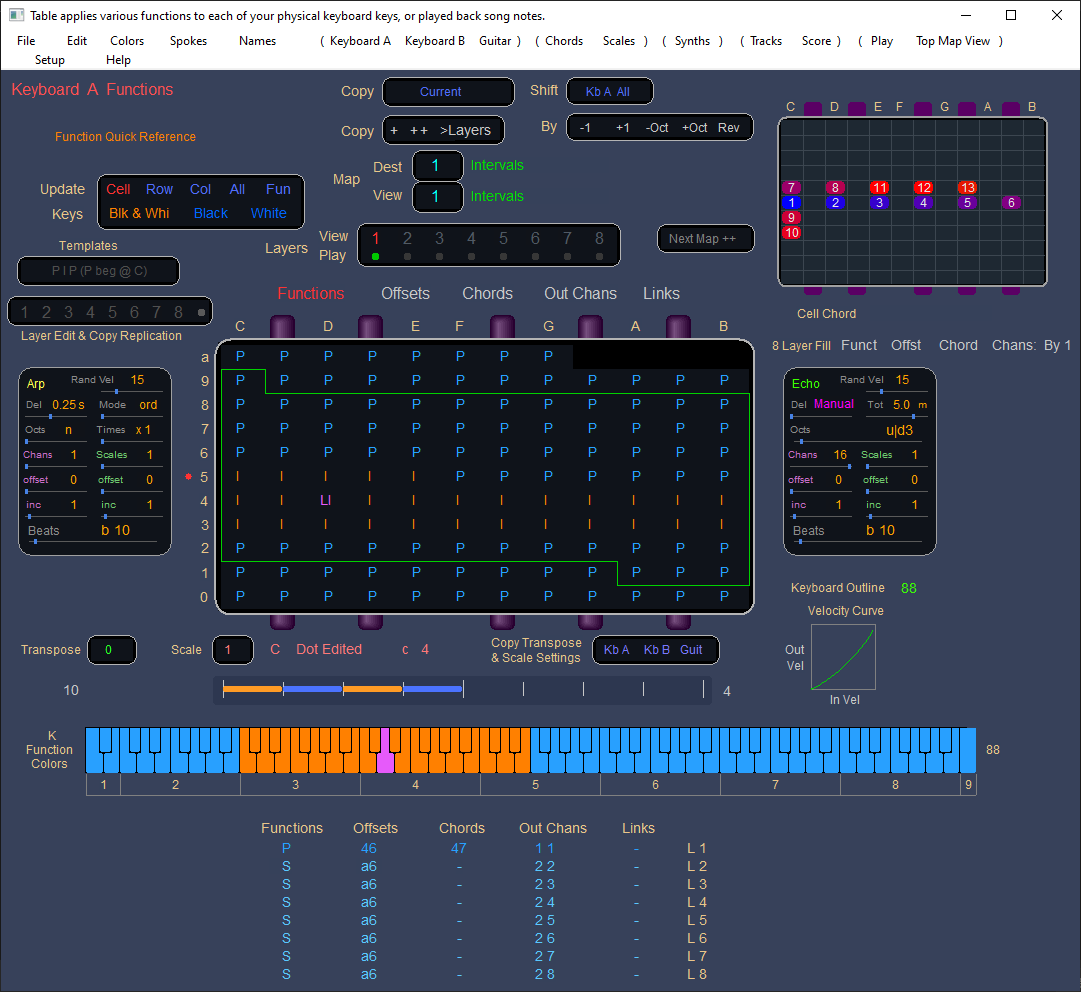
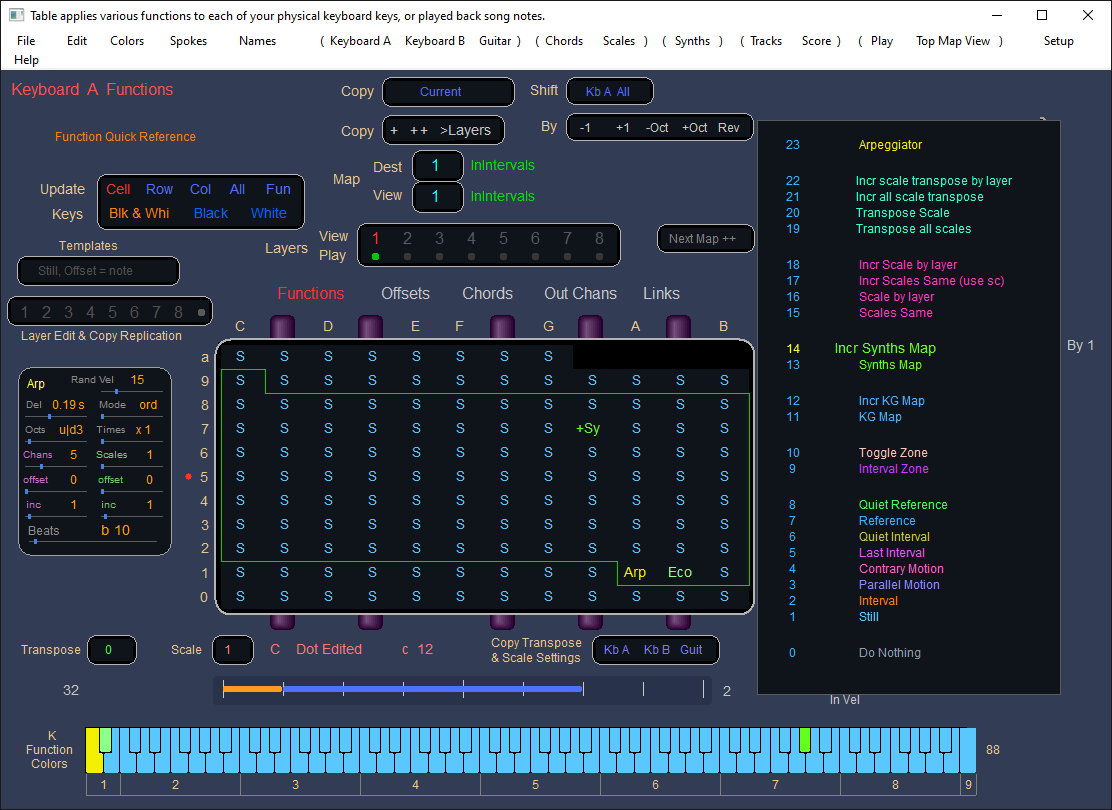
Here, Functions are applied, and decode each played note, coming from a keyboard, for instance. At the upper right is a chord applied to one note the mouse is hovering over. At the bottom, you can see all the data in the various layers for the note the mouse is hovering over.
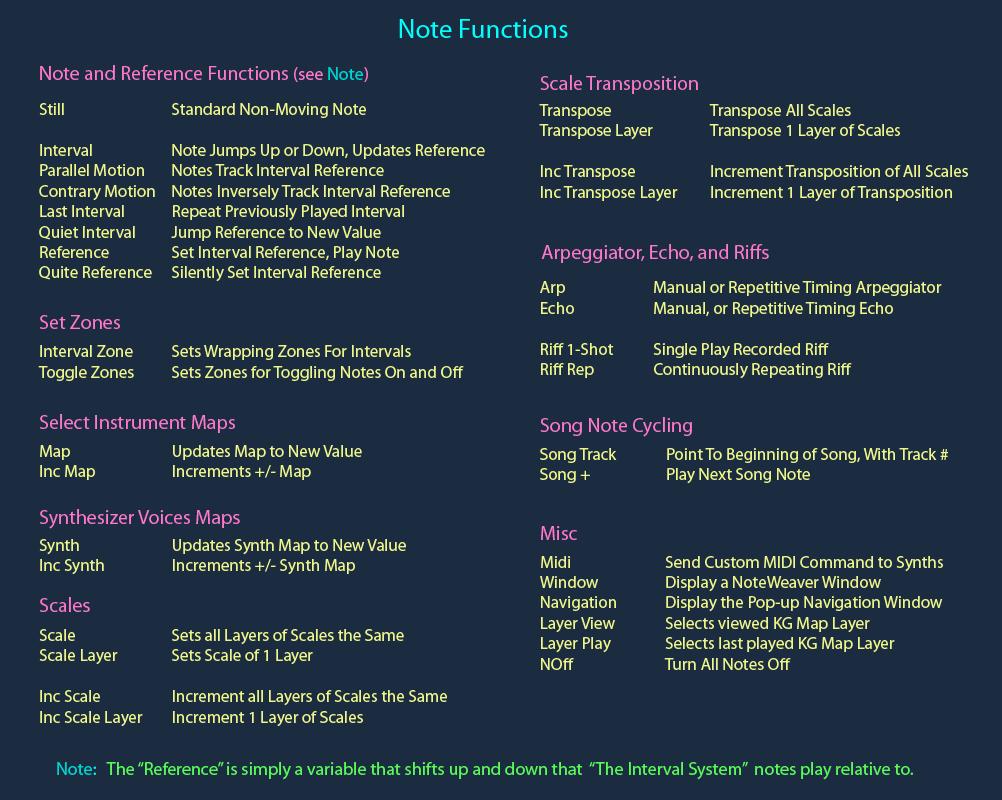
Here are various Note Functions each played note can trigger. And, from within the program, when editing note Functions,
While editing, scrolling the mouse selects Functions within the right shown list.
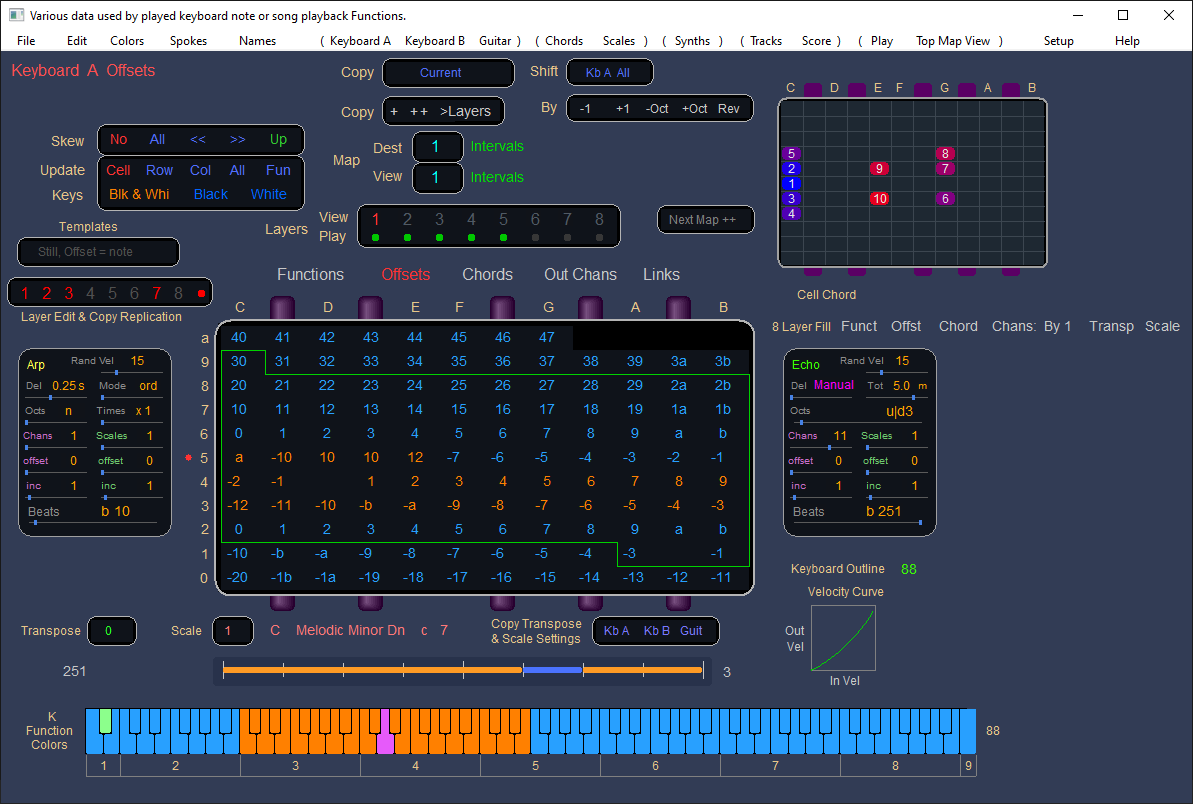
For convenience, high speed editing was (obviously) imperative to implement. For instance, in the Offsets (and Scales) windows , it's valuable to skew the
With single mouse clicks, complete tables of
data
can
be instantly
Base 12 numbering is used throughout for notes, so octaves line up cleanly.
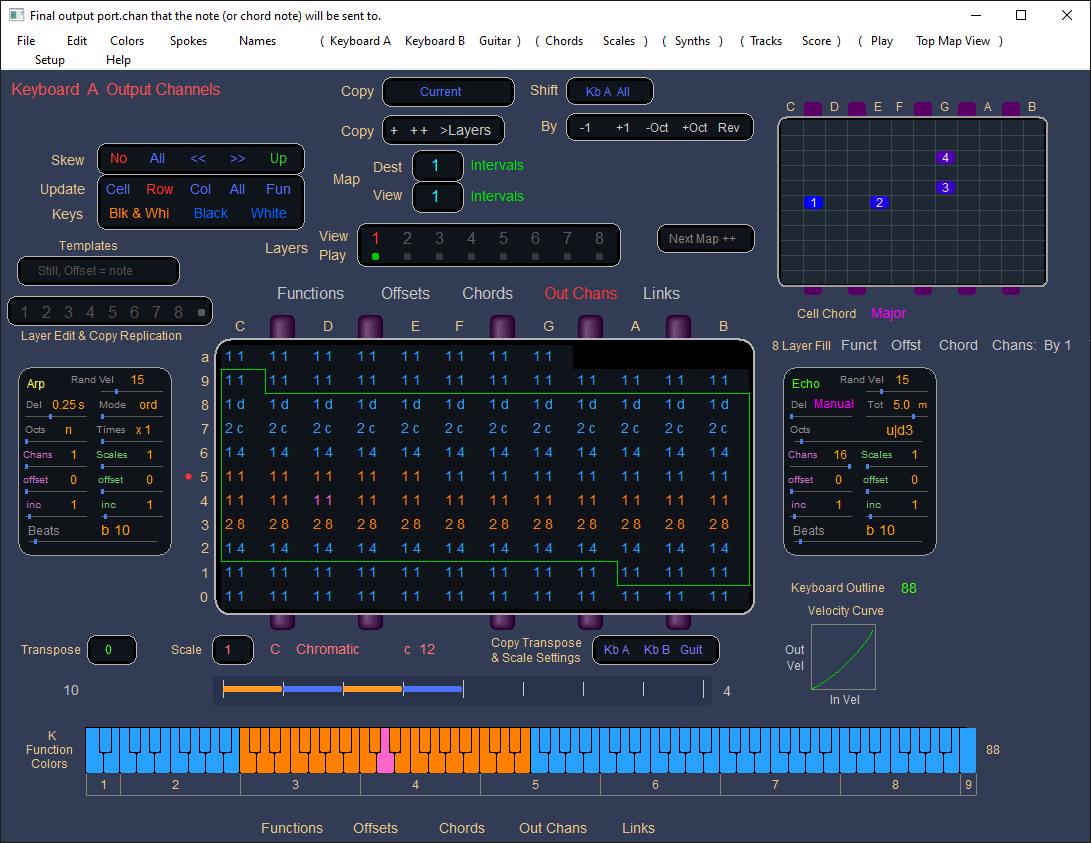
Here, each note of each layer directs it's output to a specific output Port and Channel of the current (output) "Synths Map" The next large screen shot shows a Synths Map with a vertical list The number 2 6 means: port 2, channel 6. Selecting Out Chans values of 1 1, or 1 8, for instance, simply You might ask: "Why not just select voices, directly? Why go indirectly through a Port and Channel?" These are good questions.
This large table is a Synths Map (out of 256 possible). It contains maps of output voices the output synths generate. The tables to the right also direct input controller events to the voices in an open-ended fashion. Editing on the lower Synths maps (also in the smaller Play window table) can be This can be done in real-time, while Echo voices are cycling, for instance.
The upper left table offers rich, quick, voice auditioning opportunities to select your favorites.
Bends can have independently selectable Up and Down ranges. Note: This mapping only applies to 7 bit controllers, and 14 bit bend controllers. If you're using your synth also as an input controller, NRPN
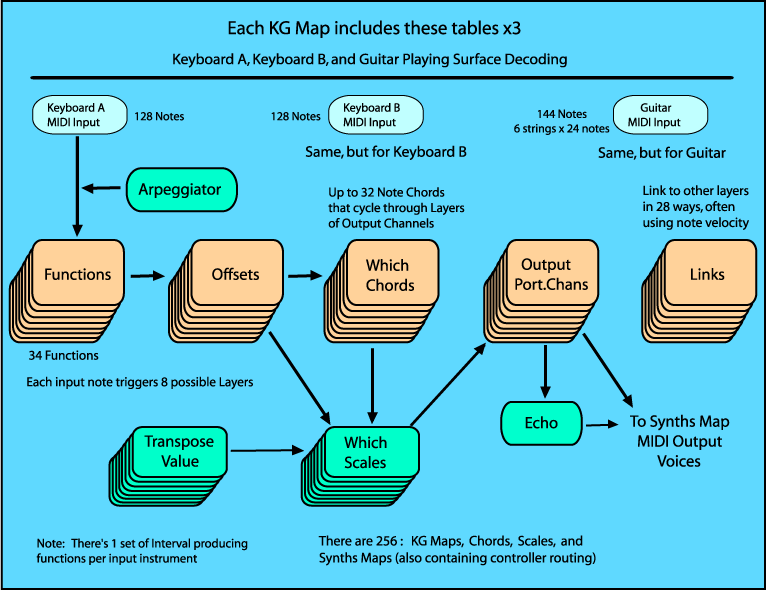
The labels above the large table show Functions, Offsets, Chords, Out Chans, On a note-by-note basis, you can link to other layers, in various ways, often depending upon note velocity.
Arp and Echo beats are selected from within a list, or 4x precision beats (beyond that shown) can be built manually, and saved.
MIDI Guitars are a special case, and needed to be edited differently. Here's an example of guitar note decoding -- 6 strings x 24 notes, each, = 144 notes.
Chords are designed by clicking in the Chords tables, with notes, visually, in any Key
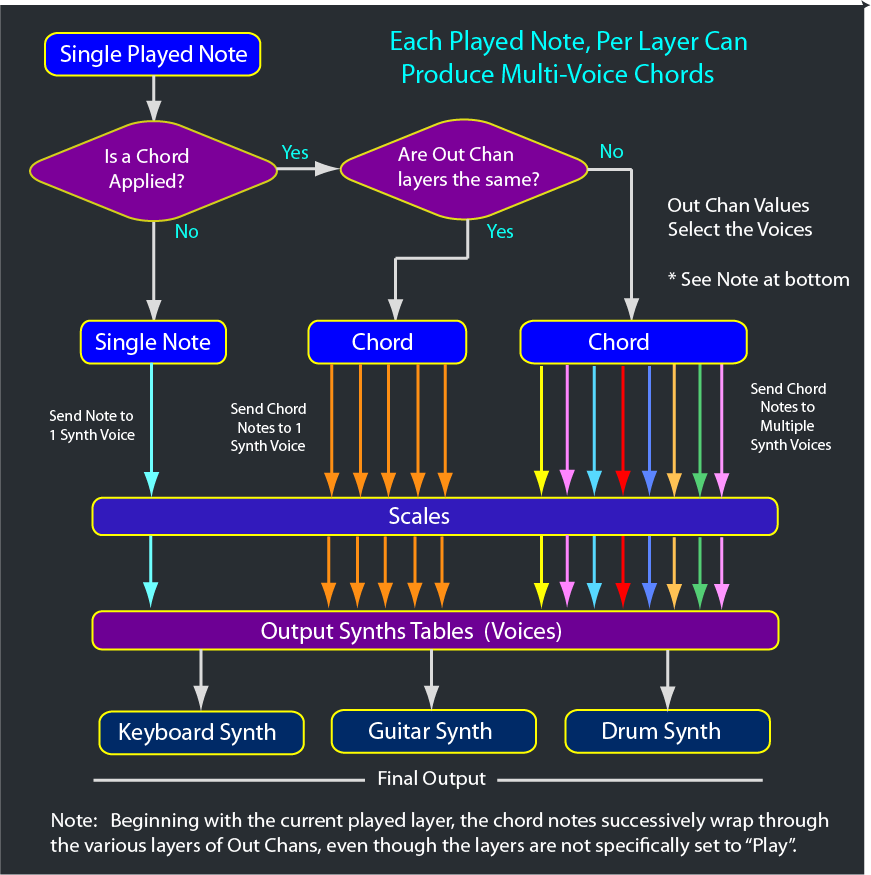
Here's how chords are decoded and sent through scales, and While not shown, the KG Map "Chords" table selection simply has
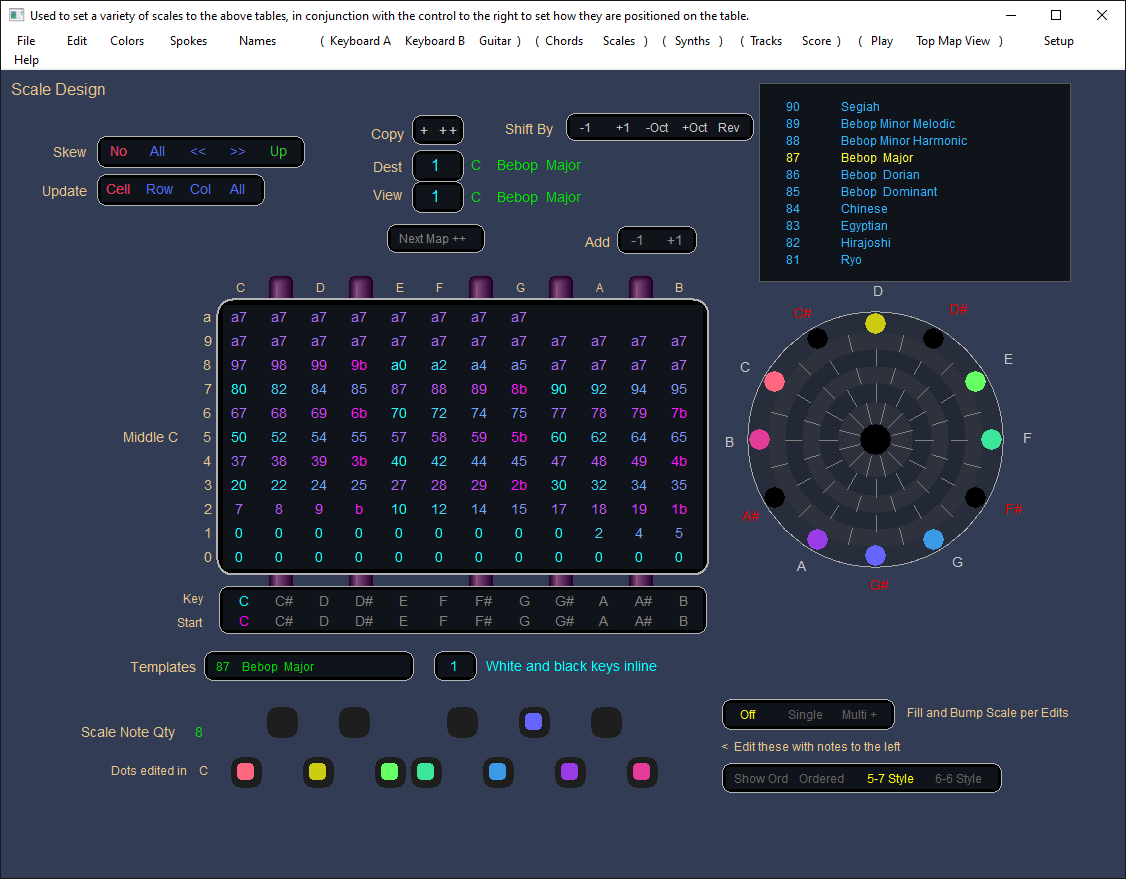
Scales are designed here, in any Key, and Starting position along the octave. At the bottom right, there's a selection for "Ordered", whereby one can click
the Then, for each layer of each instrument (in the KG Map windows), scales are applied. -- Also transposition.
Also, clicking in the areas between the white line segments streamlines editing. I've recently added some scale templates from a book called "Musical Scales of the World" by Also, the control near the bottom that shows "White and black keys inline"
Most real-time performance is from within the Play window. The sliders at the lower left, superimpose beat velocity values on the Arps and Echos. Also at the lower left, the "Added Transpose" and
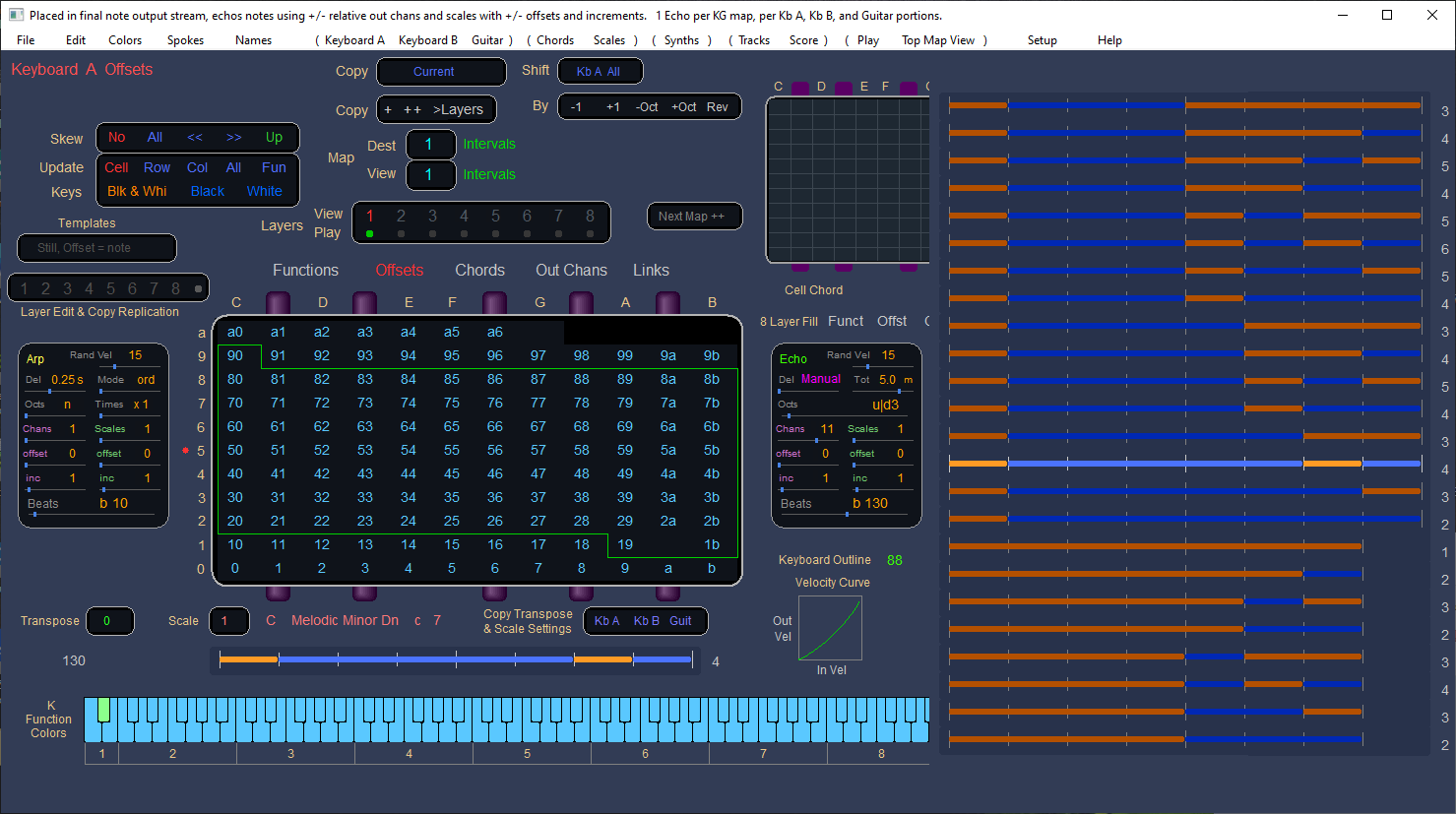
The Tracks window provides a Piano Roll vertical style view, for It reflects input instrument orientation, so played notes on the right, are on the right. NoteWeaver does not support audio wav files, nor does it do any type Wide tracks edit individually, and narrow tracks edit by multiple tracks.
The sequencer can send it's final output notes to the Final Output Score window.
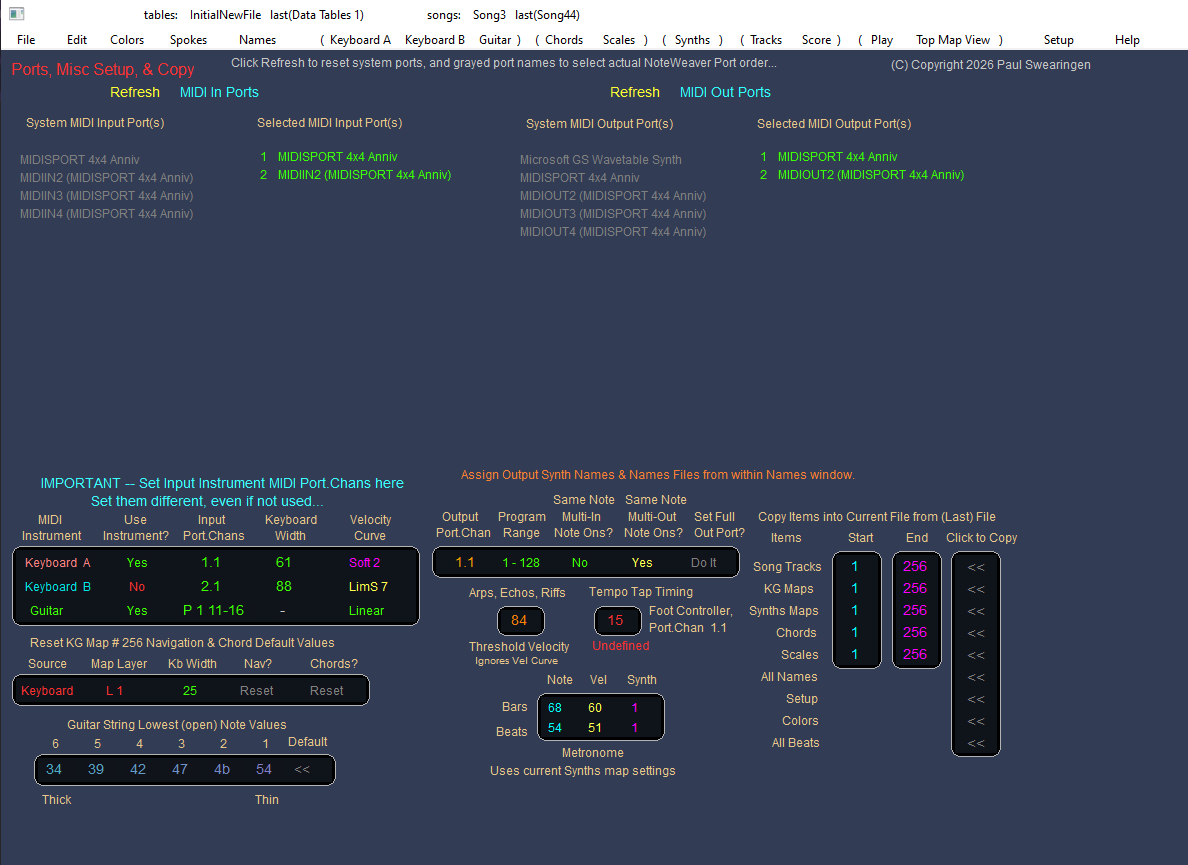
The Setup window's used to set various MIDI ports and other global
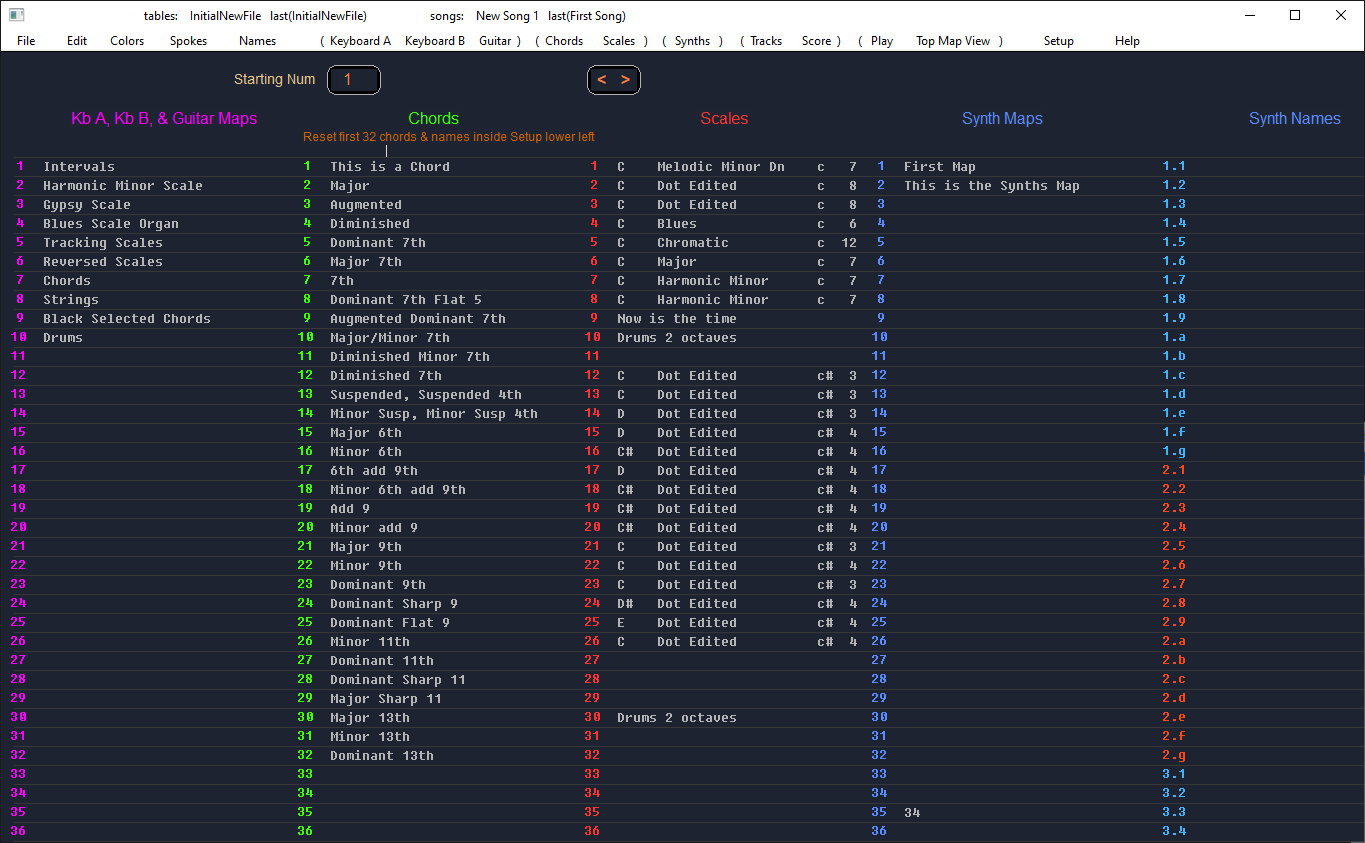
For speed, the various names of things can be edited in the Names window. There's also a column (not shown) for voice (patch) name,
In the Colors window, 4 custom color sets can be created, and saved.
From within the Help system, a general NoteWeaver flow chart can be seen. Notice the incoming data flows down into the Tracks and tables,
There's also a Navigation window that pops up when a Nav note function
Then, by clicking the Spokes menu, output
Augmented chord dots ...................................................................... Diminished chord dots
|
|---|